X10CRM integrations: what connects and where to set it up
The Integrations section of Settings: delivery, marketplaces, SMS, telephony, social channels and messengers, the call transcription vocabulary — with links to step-by-step guides.
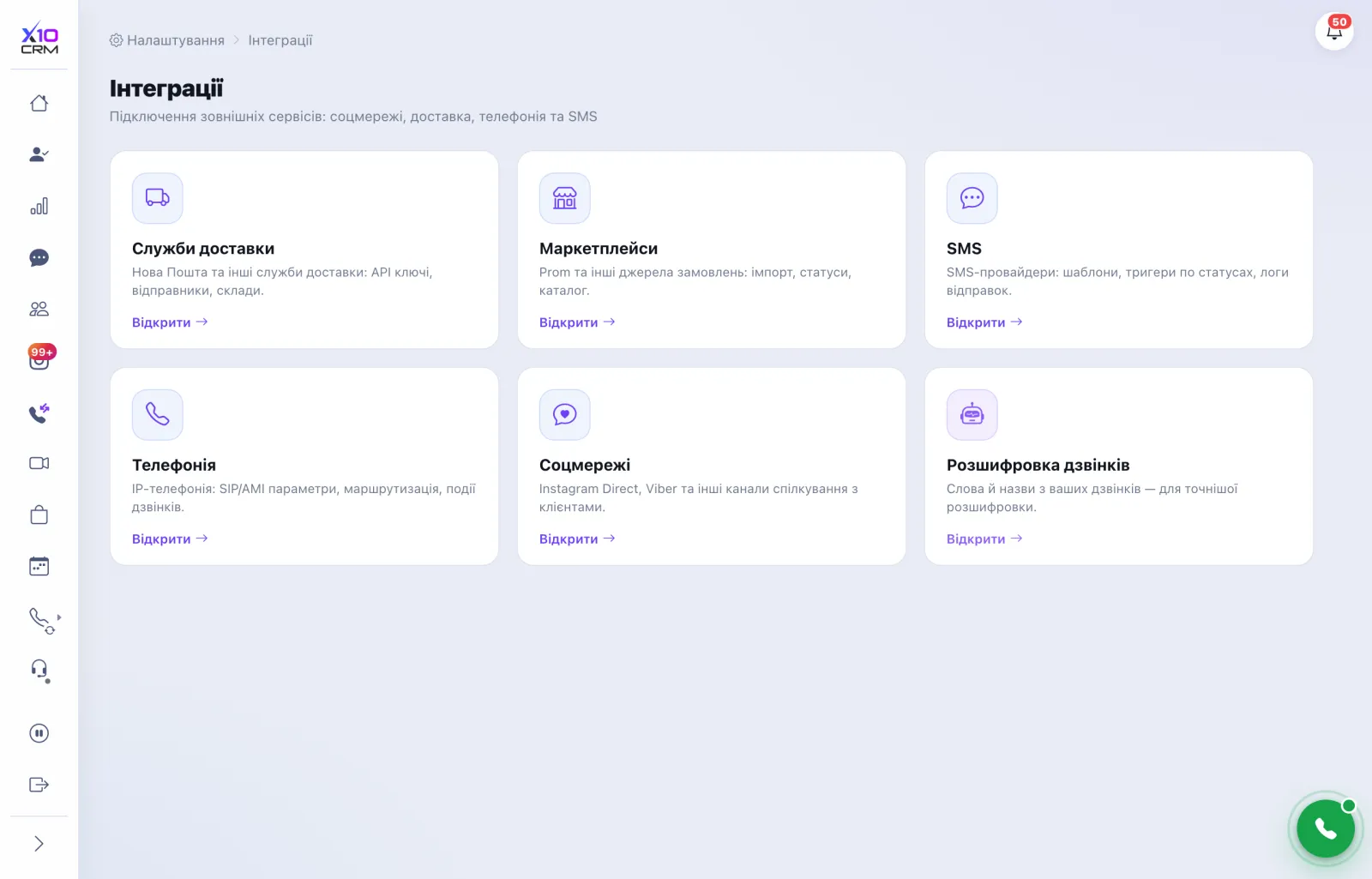
Every external service is connected in Settings → Integrations. The section is split into groups, and each card shows its state: Connected, Disabled or Not configured. What each integration does for your business is on X10CRM integrations; this guide shows where things live in the CRM.
#Delivery services
Nova Poshta, Ukrposhta and Meest: API keys, senders, warehouses. Once connected, the lead card gets city and branch selection, shipping label creation and parcel tracking. Step by step: Nova Poshta in the CRM.
#Marketplaces and stores
| Service | What it does |
|---|---|
| Prom.ua, Rozetka, Horoshop | Imports orders as leads, writes statuses back, syncs the catalogue |
| WooCommerce | Orders from your WordPress store become leads straight away |
| OLX | Connects OLX accounts; the card shows how many accounts are connected |
Leads from your own landing page or website form aren't connected here but through a webmaster token.
#SMS
Connecting an SMS provider: message templates, automatic SMS on status changes and a send log. For more complex rules — reminders after N days, conditions on fields — use triggers.
#Telephony
| Card | What's there | Guide |
|---|---|---|
| Server telephony (the "Asterisk" card in the CRM) | Trunks, numbers, routing, call events | Telephony in the CRM |
| Binotel | Connecting the PBX and mapping internal lines | Binotel |
| Ringostat | Calls, employees, recordings, call tracking | Ringostat |
| Voice menu | Keypad menu and business hours for inbound calls | Telephony in the CRM |
| AI employee | A voice agent answers calls instead of a person | AI voice agent |
| AI dialer | Campaigns where the agent makes the calls, with a live monitor | AI outbound campaigns |
| Voice prompts | A library of recordings for menus and announcements | — |
#Social channels and messengers
Instagram Direct, Viber, Telegram, email and other channels. Guides: Telegram, Viber, WhatsApp and Telegram numbers via E-chat, Viber telephony. Every channel has the same access settings:
| Field | What to set |
|---|---|
| CRM project | Which project the channel's conversations and leads belong to. |
| Channel owner | The employee responsible for the channel. |
| Who can see the channel (required) | Shared by all operators; project users only; owner only; owner and selected users. |
| Additional access | Specific employees who see the channel on top of the rule above. |
| Auto-assignment (required) | Off, or round-robin between operators — new conversations are shared out evenly. |
| Auto-close (required) | After how many days without activity a conversation closes. 0 — never. |
| Auto-reply to the first message | Text the customer gets straight away — e.g. "Thanks, a manager will reply within 10 minutes". |
#Call transcription vocabulary
Transcription, line-by-line scoring and AI call analysis work automatically — there's nothing to connect. You can make them more accurate, though: in the Call transcription card, list the brands, products, services and names that come up in your calls.
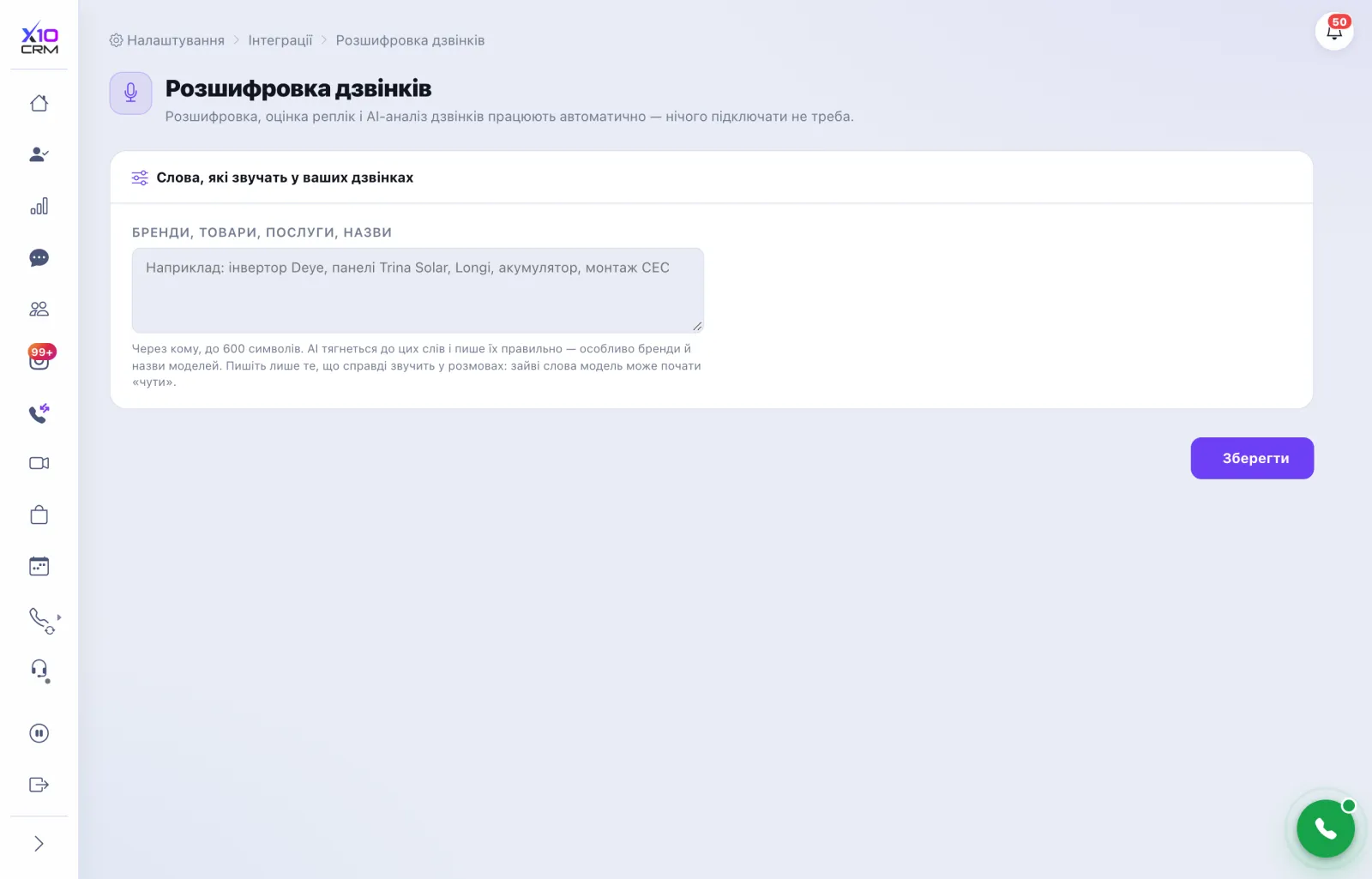
- Comma-separated, up to 600 characters.
- The AI leans towards these words and spells them correctly — brands and model names especially.
- Only list what's really said in calls: extra words can make the model "hear" them where they weren't.
How to read a transcript: Call transcription.