
X10CRM settings: where everything lives
A map of the Settings page: what each card configures, who can see it and where to start when your CRM is brand new.
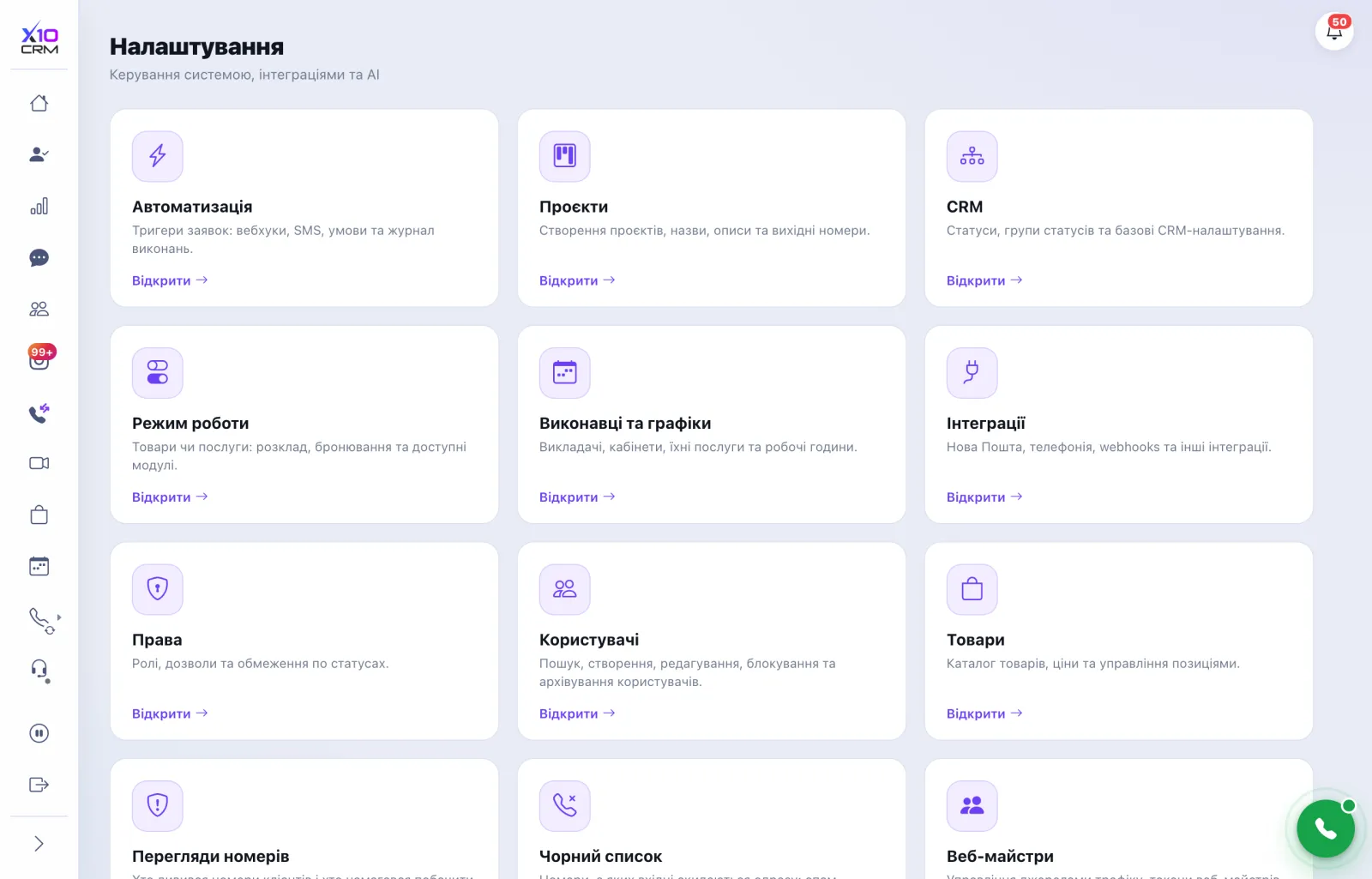
Everything an administrator changes in the CRM is gathered on one page — Settings (the gear icon near the bottom of the menu). Each card opens its own section. This guide is the map: what lives where and in what order to set things up. Each section has its own detailed guide.
#Settings sections
| Card | What it configures | Guide |
|---|---|---|
| Projects | Business lines with their own leads, users, outbound number and statistics | Projects and operating mode |
| Operating mode | Products, services or both; industry, scheduling modules, your own interface names | Projects and operating mode |
| CRM | Statuses, pipelines, lead card, custom fields, money, transition map, API, call scripts | Lead settings |
| Users | Employee accounts: role, projects, extension, blocking, archive | Users |
| Permissions | Roles, permissions and the statuses each role can see | Roles and permissions |
| Automation | Triggers: a webhook, SMS or notification when something happens to a lead | Automation |
| Integrations | Delivery, marketplaces, SMS, telephony, social channels, transcription vocabulary | Integrations |
| Blacklist, Number substitution, Number views | Protection from spam and from leaks of your customer base | Phone number protection |
| Staff and schedules | Specialists, rooms, equipment and their working hours | Service mode |
| Products | Catalogue, prices, purchase cost and stock | Cart, products and prepayments |
| Webmasters | Traffic sources, tokens and partner statistics | Webmasters |
#Where to start: setup order
- 01
Projects
Create one project per business line if leads, teams or phone numbers differ between them. A single business needs a single project.
- 02
Operating mode
Choose Products, Services or both. This decides which modules appear in the menu.
- 03
Statuses and pipelines
List the stages a lead goes through and mark which of them mean agreed, won and lost — your reports depend on it.
- 04
Roles and users
Roles with the right permissions first, then employee accounts with their projects and extensions.
- 05
Integrations
Telephony, delivery, messengers and lead sources: your website, marketplaces, ads.
- 06
Automation
Once the process has settled, hand repetitive work to triggers: an SMS to the customer, a webhook to your warehouse, a note to the manager.
#Your own profile
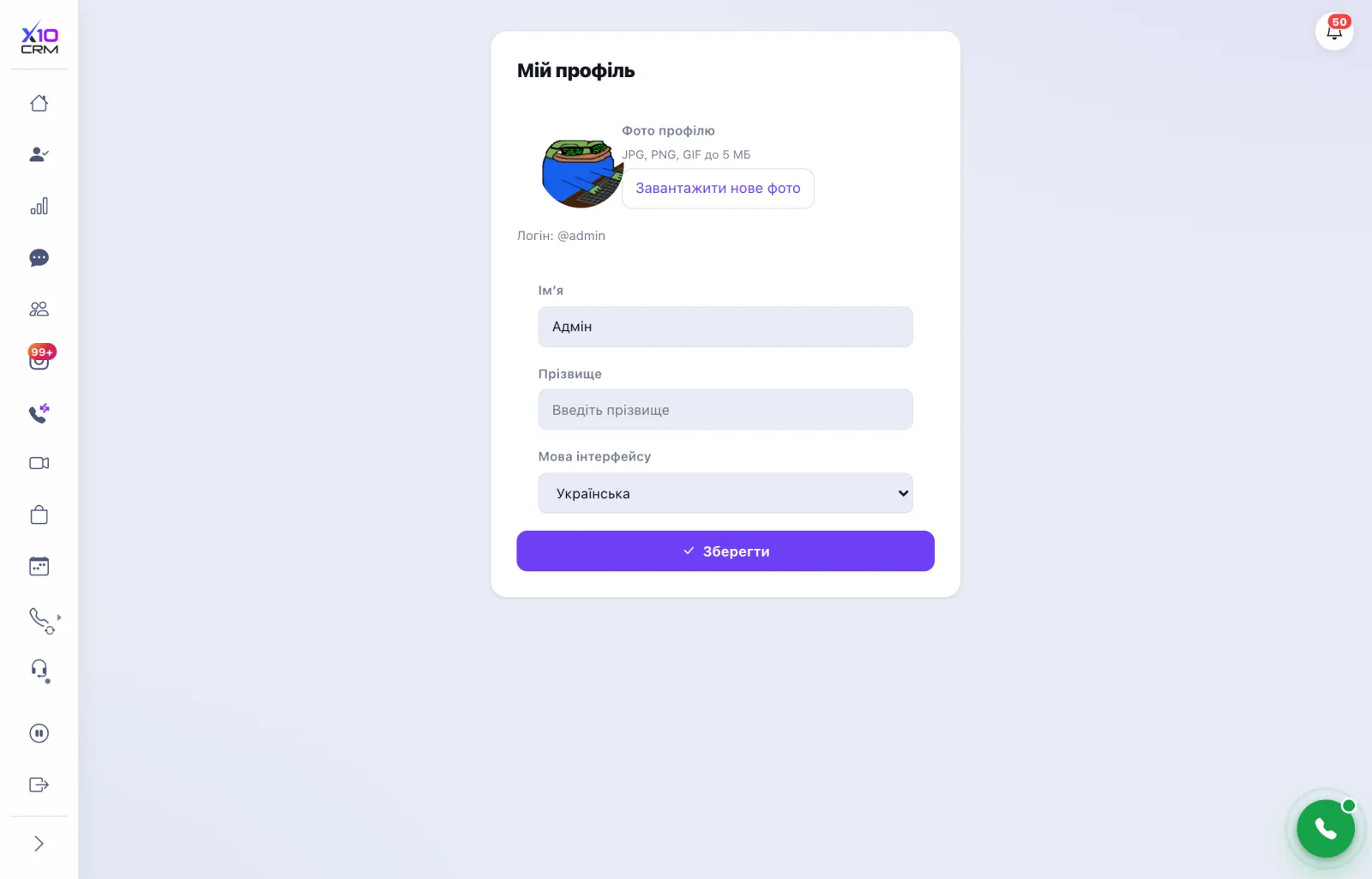
Each employee changes their personal settings in My profile: photo (JPG, PNG or GIF up to 5 MB), first and last name, and interface language — Ukrainian, Russian or English. CRM default means the language set for the whole CRM.
#How saving works
- Changes apply when you click Save in that particular block — there's no need to save the whole page.
- If you try to leave a page with unsaved changes, the CRM warns you and offers to stay.
- If a colleague changed the same block at the same time, the CRM won't silently overwrite their work: you'll see a conflict, and your text stays in the form so you can copy it.
- Changes to permissions, roles and statuses are logged, so you can see who made them and when.