
SMS from your CRM: templates by status, sender name and delivery log
How to connect an SMS provider, text customers when a lead's status changes — with the tracking number, city and branch — and check delivery in the log.
"Order received", "Your parcel is on its way, tracking 2045…", "A reminder about your appointment tomorrow at 10:00" — texts your customers get without a rep lifting a finger. Set them up in Settings → Integrations → SMS.
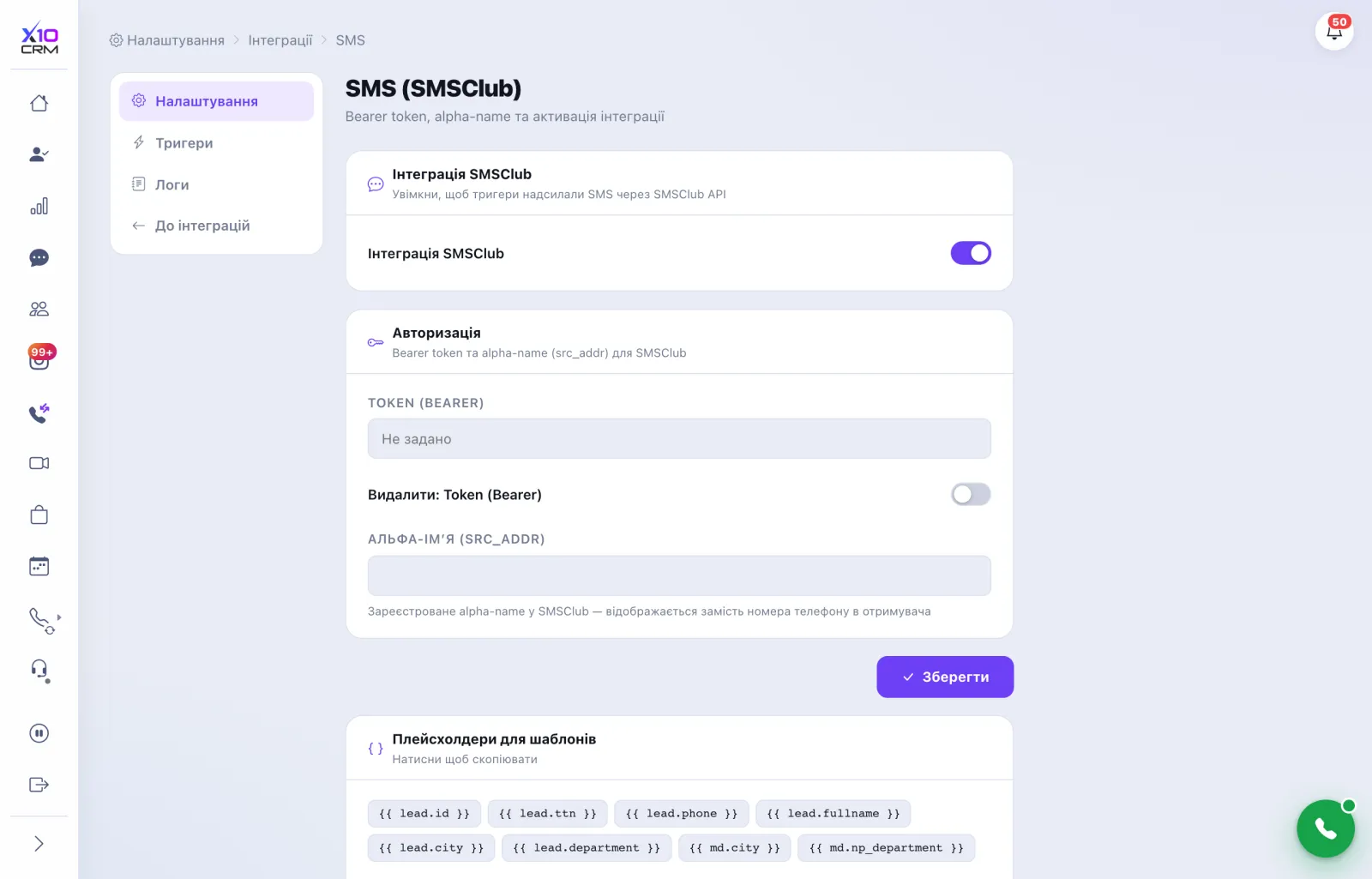
#Connecting
- 01
Get access from your SMS provider
SMSClub is supported today: create an access token in the provider's dashboard.
- 02
Register a sender name
The name customers see instead of a number, e.g. "MyShop". It's registered with the provider.
- 03
Paste the token and sender name
On the Settings tab, then save.
- 04
Turn the integration on
The toggle at the top: while it's off, triggers send nothing.
#Triggers by status
Triggers tab → Add / update trigger: choose a status and write the text. When a lead moves into that status, the customer gets the SMS. One template per status; to change the text, update the trigger for that status.
| Variable | What's filled in |
|---|---|
{{ lead.id }} | Lead number |
{{ lead.fullname }} | Customer name |
{{ lead.phone }} | Phone |
{{ lead.ttn }} | Tracking number |
{{ lead.city }}, {{ lead.department }} | Delivery city and branch |
{{ lead.fullname }}, your order #{{ lead.id }} has shipped.
Tracking {{ lead.ttn }}, branch: {{ lead.city }}, {{ lead.department }}.#Log and delivery
The Logs tab lists every SMS sent with its delivery status. Statuses refresh automatically every hour, and Refresh now pulls them immediately. If a customer says nothing arrived, start here.
#Writing tips
- Keep it short: one Cyrillic SMS is 70 characters; longer costs more.
- Put the name and order number first — it keeps the SMS from looking like spam.
- Test the template on a sample lead before switching it on for everyone.
- Careful with bulk status changes: every customer in the selection gets the SMS — see Bulk actions.