
Lead settings: lead card, pipelines, fields, money and transitions
The CRM section of Settings: statuses and multiple pipelines, lead card behaviour, Need attention, AI lead summary, custom fields, prepayments and profit, the transition map, API and call scripts.
Settings → CRM is the heart of the system: it defines how a lead moves, what it stores and what happens after every click a rep makes. The section is a set of collapsible blocks, and each one is saved on its own.
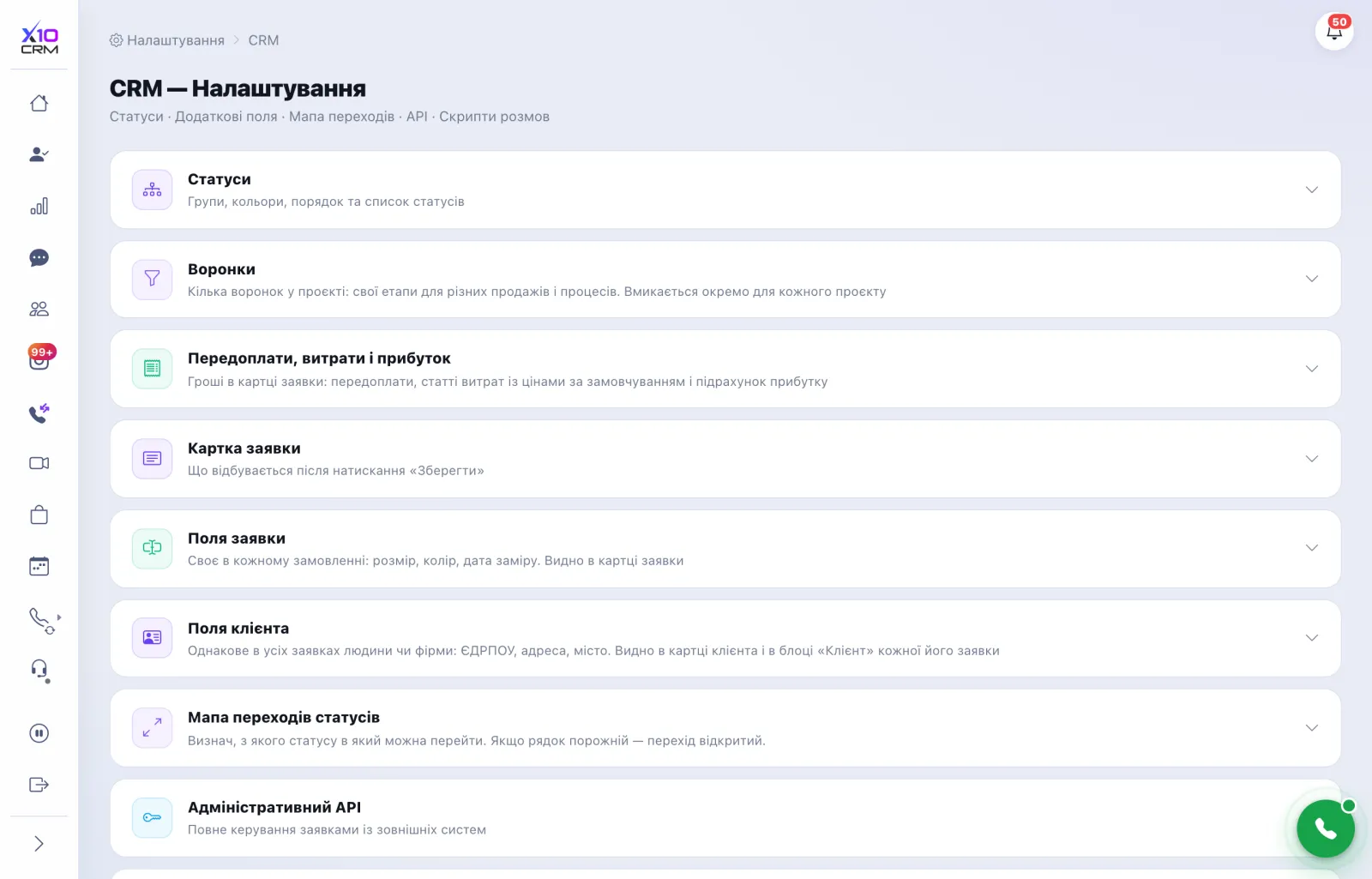
#Statuses
Groups, colours, order and the list of statuses. How to build a funnel out of statuses and why groups matter is covered in Statuses, groups and transitions.
#Pipelines: several processes in one project
Multiple pipelines are switched on per project. Use them when one team runs different processes: retail and wholesale, sales and service, new customers and repeat sales.
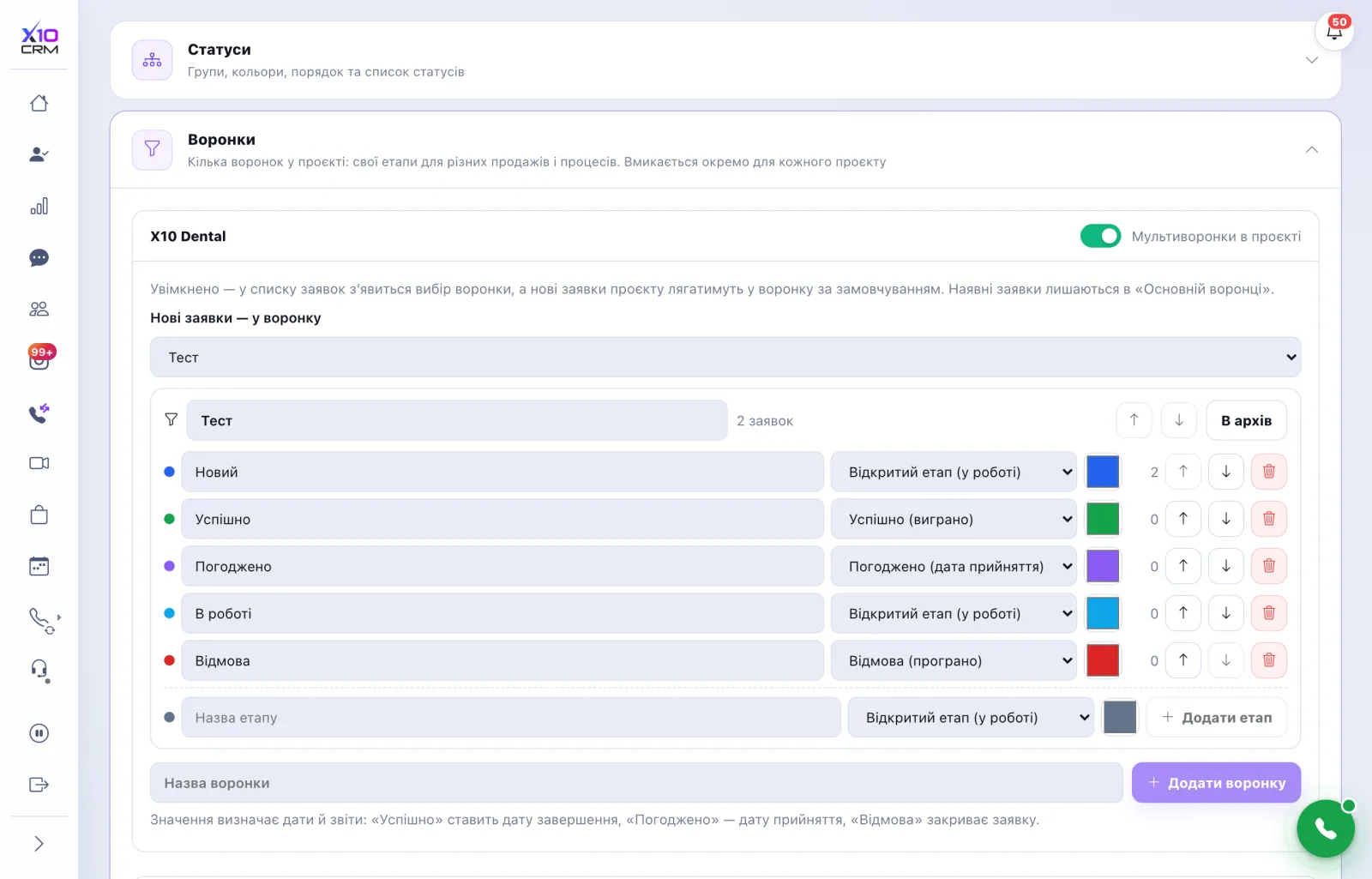
- Switch on multiple pipelines for the project you need.
- Add a pipeline: type a name and click Add pipeline.
- Add stages. For each one choose a meaning — open stage (in progress), agreed (acceptance date), delivery, won, return or lost — and a colour.
- Use the arrows to put stages and pipelines in the right order.
- Choose which pipeline the project's new leads land in.
- Once switched on, the lead list and the kanban get a pipeline switcher, and a lead can be moved from one pipeline to another.
- Existing leads stay in the Main pipeline — nothing moves by itself.
- Send a pipeline you no longer need to the archive: leads and history are kept. The lead count is shown next to each pipeline's name.
#Prepayments, expenses and profit
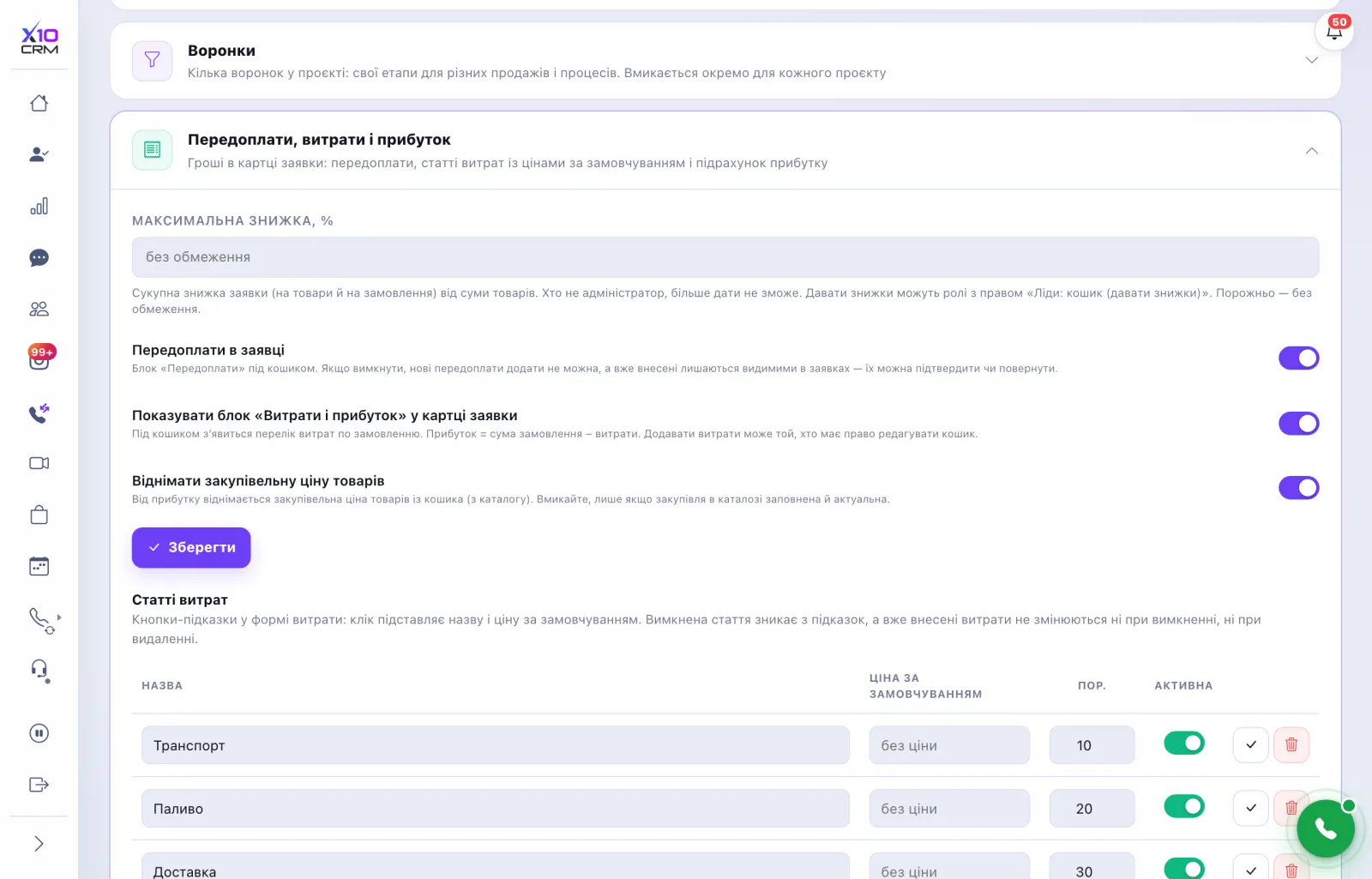
| Field | What to set |
|---|---|
| Maximum discount, % | The largest total discount on a lead (on items and on the order) as a share of the items' sum. Only an administrator can give more. Giving discounts at all requires the "Leads: cart (give discounts)" permission. Empty — no limit. |
| Prepayments in leads | The Prepayments block under the cart. Switch it off and new prepayments can't be added, while existing ones stay visible and can still be confirmed or refunded. |
| Expenses and profit block | A list of order expenses appears under the cart: shipping, ads, packaging. Profit = order total − expenses. Anyone allowed to edit the cart can add expenses. |
| Subtract purchase price | Profit also subtracts the purchase cost of cart items from the catalogue. Switch it on only if purchase prices in the catalogue are filled in and up to date. |
Expense items are shortcut buttons in the expense form: a click fills in the name and default price. A disabled item disappears from the shortcuts; expenses already entered never change when an item is disabled or deleted.
#Lead card
This block defines how the lead card behaves while a rep works with it.
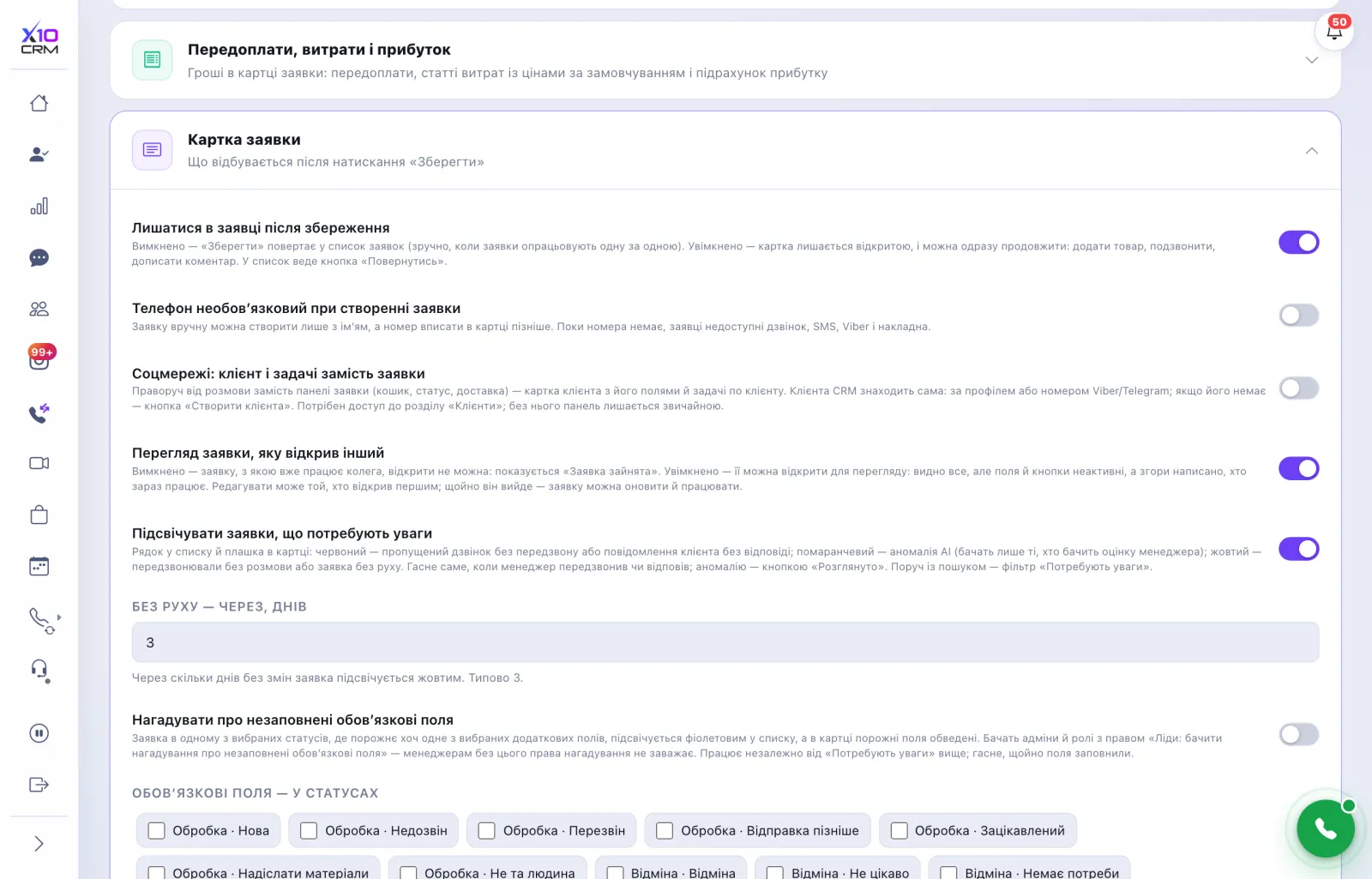
| Setting | What it does |
|---|---|
| Stay in the lead after saving | Off — Save returns to the list (handy when leads are worked one after another). On — the card stays open so you can add an item or call right away |
| Phone is optional when creating a lead | A lead can be created manually with just a name. Until there's a number, calls, SMS, Viber and shipping labels are unavailable |
| Social: client and tasks instead of the lead | Next to a conversation, the client card and their tasks replace the cart and status. The CRM finds the client by profile or Viber/Telegram number and offers to create one if there's none |
| View a lead opened by someone else | Off — a lead a colleague has open can't be opened. On — it can be viewed read-only, with a banner showing who's working on it |
| Release the lead after, min | How many minutes of inactivity a lead stays locked to whoever opened it if the tab was abandoned. 2 to 30, 5 by default |
| Alternating rows in the lead list | Zebra stripes, as in Excel: easier to follow a row across a long list |
Leads that need attention
With highlighting on, the row in the list and a banner in the card show that something is off:
- Red — a missed call with no call back, or a customer message with no reply.
- Orange — AI spotted something suspicious in the rep's work, such as asking for the customer's personal number or taking the deal outside the CRM. Visible only to people with access to manager scoring.
- Yellow — a call back with no conversation, or a lead with no activity. How many days without changes count as "no activity" is set separately (3 by default).
Highlights clear by themselves once the rep calls back or replies. AI anomalies are cleared with Reviewed. A Need attention filter appears next to search in the lead list.
Reminders about required fields
Choose statuses and the custom fields that must be filled in those statuses. A lead with an empty field is highlighted in purple in the list, and empty fields are outlined in the card. Administrators and roles with the matching permission see it — it doesn't get in the way of reps without that permission. It clears as soon as the fields are filled.
A manager for unassigned leads
Leads from your website or ads often arrive without a manager. Three toggles decide who becomes the manager automatically: whoever changes the status first, whoever calls (outbound or an answered inbound call), or whoever saves changes first in the card. Administrators are never assigned automatically.
AI lead summary
At the top of the card: what the customer wants, what the rep offered, what was agreed, the stage and the next step. AI reads every call (with transcription), conversations and the lead's notes. The summary refreshes every morning for leads where something happened, and on Refresh. Next to it is the Lead journey: the full history by day.
#Lead fields and client fields
When the standard fields aren't enough, add your own. The key is choosing the right place:
| Lead fields | Client fields | |
|---|---|---|
| What they store | Something specific to each order: size, colour, measurement date | The same across all of a person's or company's leads: tax ID, address, city |
| Where they show | In the lead card | In the client card and in the Client block of each of their leads |
| Change one value | Changes in this lead only | Changes for the client and all their leads |
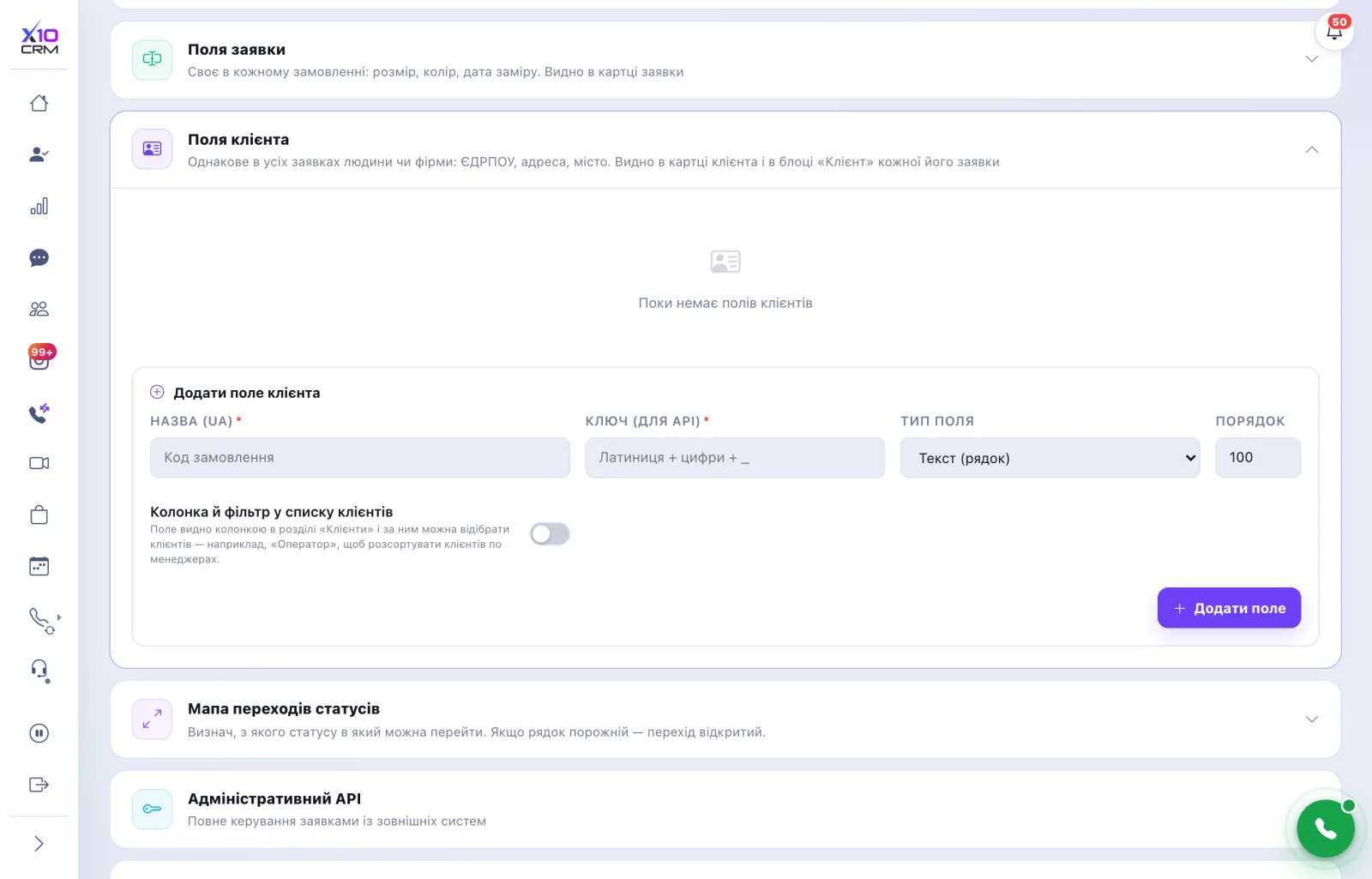
| Field | What to set |
|---|---|
| Name (required) | The field's label in the card. |
| Key (for API) (required) | In Latin letters, e.g. tax_id. The field travels under this key in the API, webhooks and imports. |
| Field type | Text (line), long text, number, date, list (choice) or link. |
| Order | Where the field sits among the others. |
| Column and filter in the client list | Client fields only: the field becomes a column in Clients and you can filter by it — for example, by the responsible rep. |
#Status transition map
A "from which status — to which" table: rows are the current status, columns are where it may go. This lets you forbid, say, moving a New lead straight to Completed and skipping confirmation.
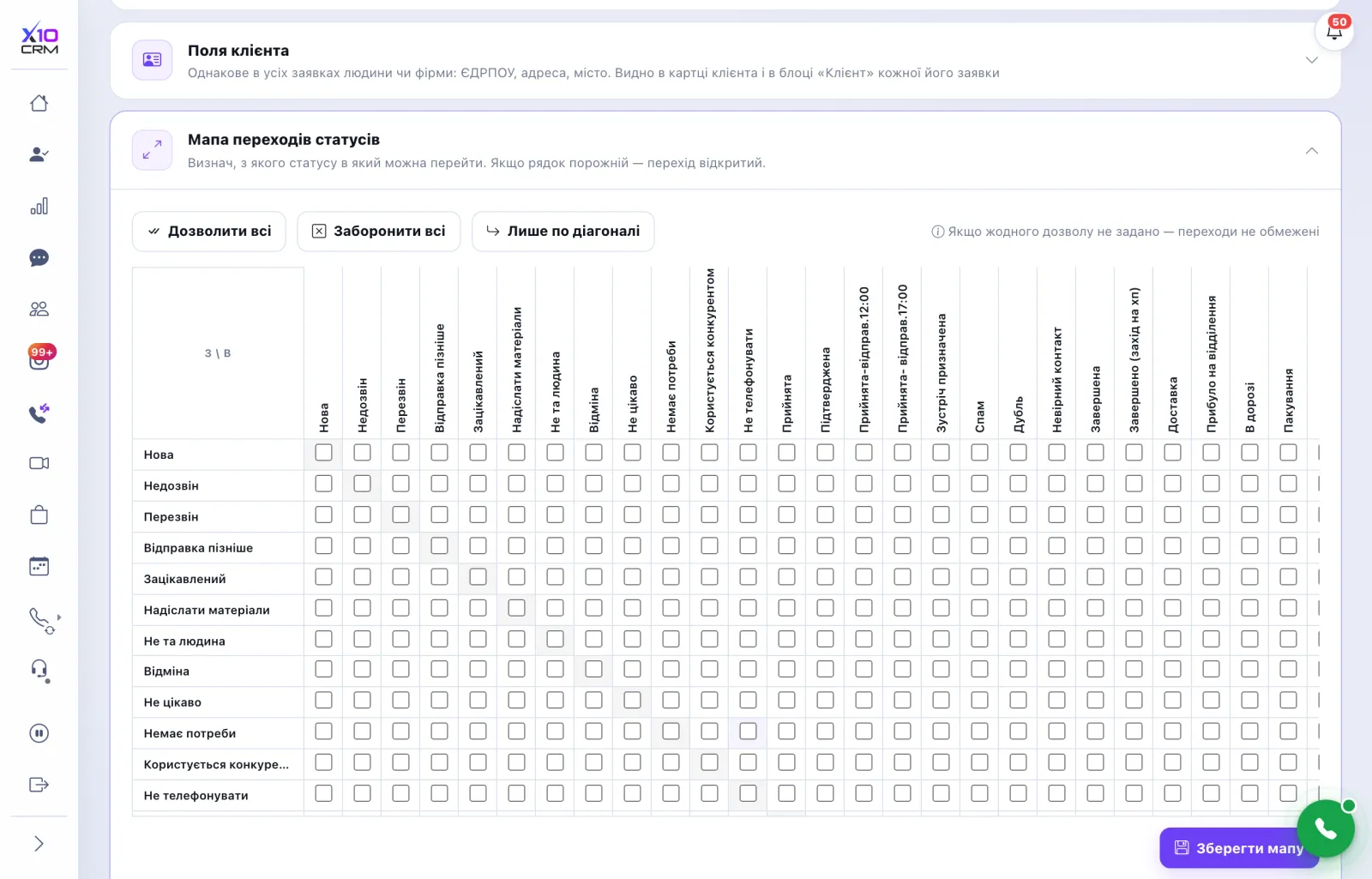
- If no transitions are allowed for a status, it can move anywhere.
- Allow all, Deny all and Diagonal only fill in the table quickly; adjust it by hand afterwards.
- The map works together with role permissions: a rep only sees statuses allowed by both.
#Administrative API
A key for full control over leads from external systems: accounting, warehouse, your own website. Unlike a webmaster token, which can only create a lead, the administrative key reads, searches, updates and deletes leads.
GET    /api/admin/v1/                 # statuses, projects, users
GET    /api/admin/v1/leads/           # list and search leads
POST   /api/admin/v1/leads/           # create a lead
GET    /api/admin/v1/leads/{id}/      # get a lead
PATCH  /api/admin/v1/leads/{id}/      # update a lead, status, manager, items
DELETE /api/admin/v1/leads/{id}/ # delete a lead (soft)#Call scripts
Instructions for reps, shown in the lead card and used in AI call analysis. A script can be tied to a project, shown only to certain roles and in certain statuses, and synced with the AI assistant's knowledge base. Open scripts takes you to the editor.