
CRM users: accounts, projects, phones, blocking and archive
How to add an employee, give them a role and projects, set up calls in the browser or on their phone, then block or archive them without losing history.
Every employee signs in to the CRM with their own login. The account decides everything: what they see (role and projects), which number they call from, and whose name appears on calls, status changes and notes in a lead's history.
#The user list
Settings → Users. Users are split into three tabs with counters: Active, Blocked and Archive. Search by login or full name, filter by project and role. The table shows each user's role, projects and extension (SIP).
#Creating a user
Create user opens the form. Login, password and role are required.
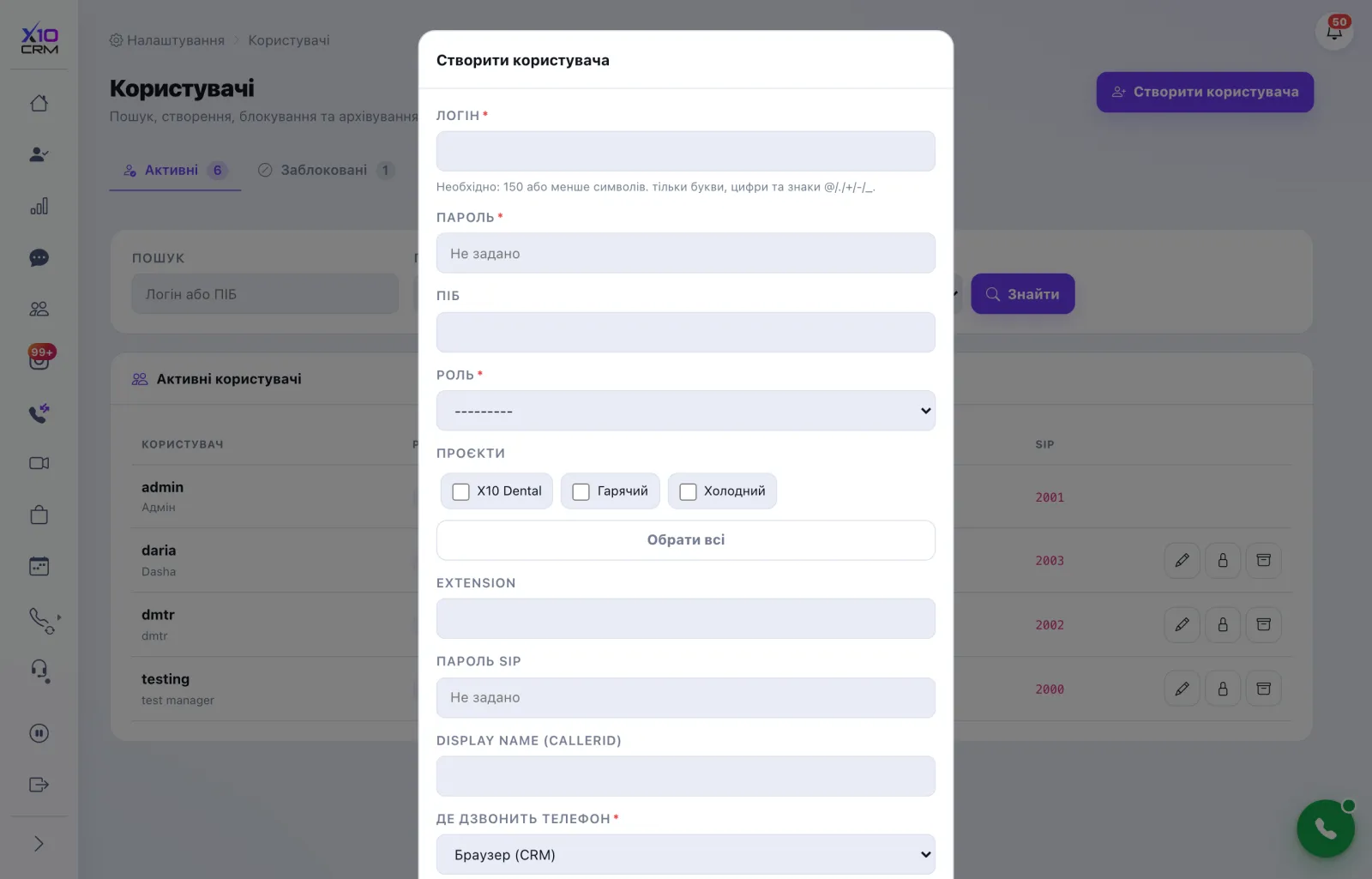
| Field | What to set |
|---|---|
| Login (required) | Up to 150 characters: letters, digits and @ . + - _. The employee signs in with it. |
| Password (required) | Hand it to the employee in person. When editing, an empty field keeps the current password. |
| Full name | How colleagues see the employee: in lead history, reports and the manager list. |
| Role (required) | A set of permissions. Roles are created in Roles and permissions. |
| Projects | Which projects' leads the employee can see. Select all picks every current project. |
#Role and projects: what an employee sees
The role answers "what can they do", projects answer "with which leads". A rep with the Manager role and the Wholesale project sees only wholesale leads and can only do what the role allows.
#The employee's phone
The lower part of the form matters if the employee calls through CRM telephony.
| Field | What to set |
|---|---|
| Extension | The employee's internal number, e.g. 2001. Extensions can't repeat. |
| SIP password | The extension's password. Leave it empty and the CRM generates one. |
| Display name (CallerID) | The name colleagues see on internal calls. |
| Where calls ring (required) | Browser (CRM) — calls in the CRM tab; Bria on the phone — in the mobile app; Browser and Bria — both, whichever answers first. |
| Outbound number | The number customers see when this employee calls. Empty — the project's or the system number. |
#Blocking and archive
| Action | When | What happens |
|---|---|---|
| Block | Holiday, temporary suspension, suspected password leak | Sign-in is closed and the account sits in the Blocked tab. Unblock with one click |
| Archive | The employee has left | Sign-in is closed and the account disappears from manager pickers. History — calls, notes, status changes — keeps their name |
| Restore | The employee is back | The archived account is active again with the same history |
Blocking and archiving are separate permissions. You can, for example, let a team lead block reps but not restore archived accounts.
#New employee checklist
- Account created with full name and role
- Projects added
- Extension and "where calls ring" set
- Outbound number checked
- Login and password handed over in person
- The employee signed in, set their language in the profile if they wanted, and made a test call